How to Set Default Item Level Discount in myBillBook
Written By Team Flobiz
Last updated 8 months ago
Overview
If you sell certain items at a fixed discount every time, manually applying that discount on every invoice is tedious and error-prone — especially when you have a team billing on your behalf.
myBillBook now lets you set a default discount on any item in your inventory. This discount auto-applies every time the item is added to a sales transaction. No more remembering, no more mistakes.
📌 Platform: Available on Web and ODA (Desktop App). Works across all sales voucher types.
What Is Item Level Discount?
Item Level Discount is a default discount you set once on an item. Every time that item is added to a sales voucher, the discount is pre-filled automatically.
Example: You always give 10% discount on a specific product. Instead of typing "10%" every time you bill it, set it once in the item's pricing details. Next time you add this item to an invoice, the 10% discount is already applied.
Key difference from Discount on MRP: Item Level Discount is an actual discount applied to the selling price that reduces the invoice amount. Discount on MRP is a display-only field showing savings off MRP.
Where Item Level Discount Applies
The preset discount auto-applies on:
Sales Invoice
Estimate / Quotation
Proforma Invoice
Credit Note
Delivery Challan
⚠️ Does NOT apply to: Purchase Invoice, Debit Note, or any purchase-related transaction. Item Level Discount is sales-side only.
How to Set Up Item Level Discount
Step 1: Open an Item
Go to the myBillBook Dashboard
In the left panel, click Items (Inventory)
Click on the item you want to set a discount for
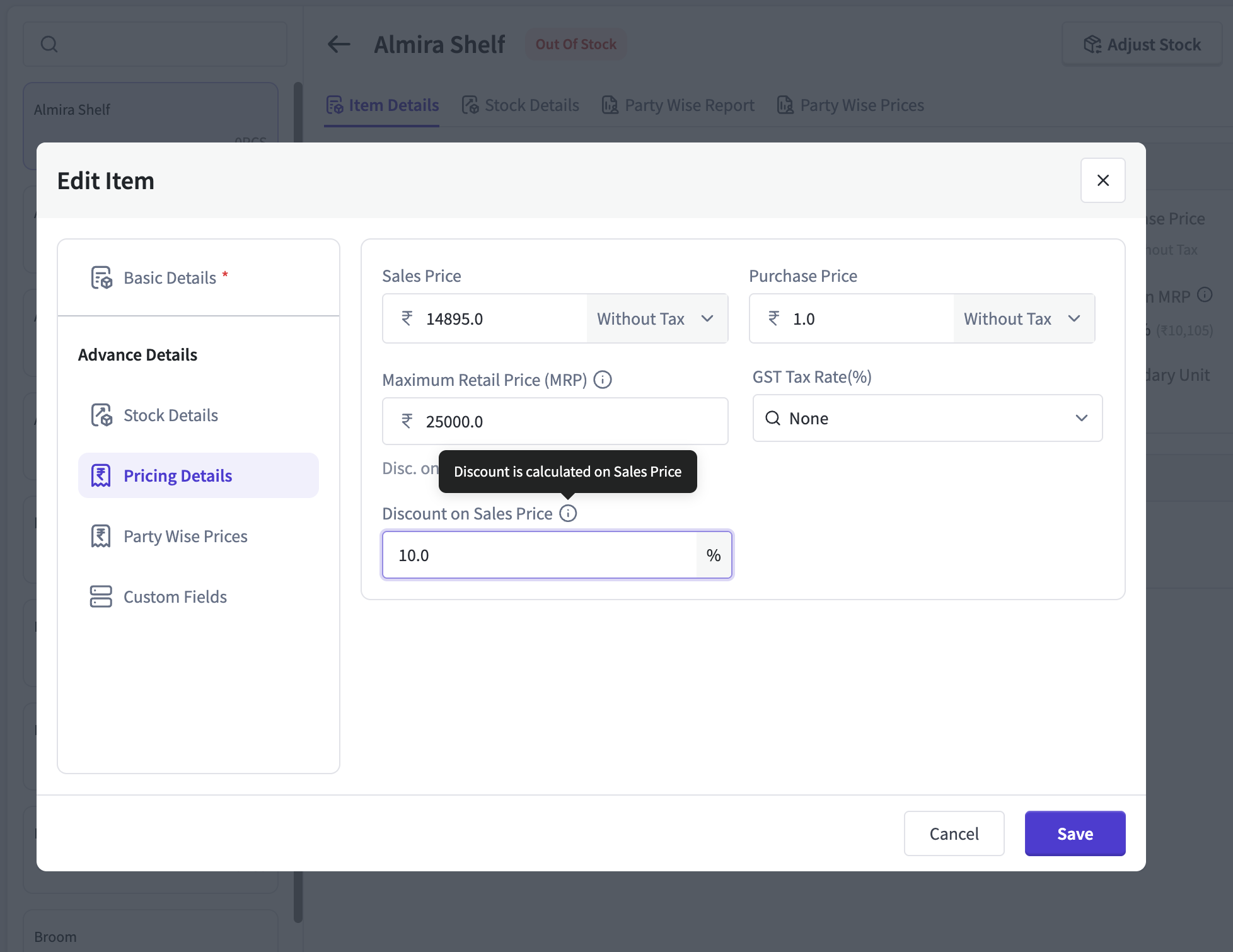
Step 2: Edit Pricing Details
Click Edit Item (or the edit icon)
Scroll to the Pricing Details section
You'll see a field: "Discount on Sales Price"
Enter the discount value — for example, 10%
Click Save
Step 3: See It in Action
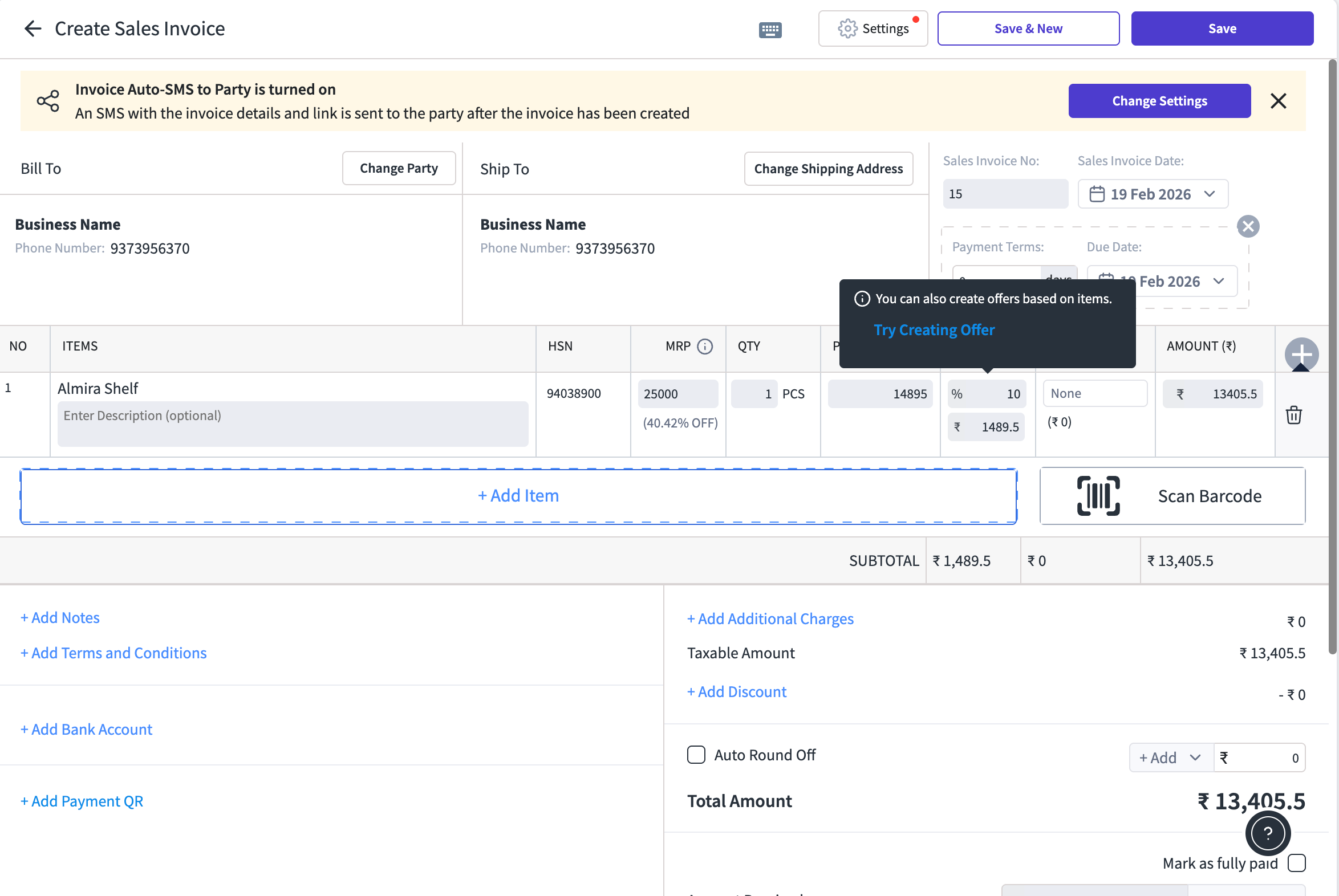
Go to Sales → Create Sales Invoice
Add a Party (customer) and add the item you just edited
The discount is already pre-filled on the item line — auto-applied!
You can still edit the discount on the invoice if needed for a specific transaction
💡 Tip: Use Bulk Edit to set discounts across multiple items at once. Go to Items → Bulk Edit. Note: Bulk edit supports percentage (%) discount only.
What Gets Updated Automatically
Invoice line item shows the pre-filled discount whenever the item is added
Invoice Print reflects the applied discount
Ledger entries account for the discounted amount
GST calculations are done on the discounted price
Works with Wholesale prices and Party-Wise Item Pricing (PWIP)
For batched and serialized items, the discount applies to the item as a whole, not individual batches
Important Things to Know
Changing the default discount does NOT affect past invoices. Only new invoices pick up the updated discount.
The discount is editable on the invoice screen — your staff can override it for specific transactions if needed.
Discount before tax interaction: If a user has already applied "Discount before tax" on an invoice and then adds an item with a preset discount, the "Discount before tax" value takes priority (not the preset).
Access control: Only Admin, Partner, Stock Manager, and Accountant roles can create/edit item-level discounts.
Frequently Asked Questions
Q: Will changing the discount affect old invoices? No. Past invoices remain unchanged. Only new transactions will use the updated discount.
Q: Can the discount be edited during billing? Yes. The item-level discount is editable on the invoice screen. Your staff can adjust it for any specific transaction.
Q: Can I set different discounts for different customers? Item Level Discount is a universal default for that item. For customer-specific pricing, use the Party-Wise Item Pricing (PWIP) feature.
Q: Does this work with Bulk Add? Yes. When using Bulk Add Items, include the discount in percentage. The sample template shows how.
Was this helpful?
Still need help? Share an idea