How to Use Party-Wise Item Prices
Written By Chetan Raikar
Last updated Almost 2 years ago
Overview
Learn how to assign unique item prices to individual customers and automatically apply them during invoicing.
Prerequisites:
Ensure Party-Wise Item Price is enabled in Item Settings.
Batching must be disabled to use this feature.
Step-by-Step Instructions:
Enable Party-Wise Item Price:
Go to Item Settings and toggle on Party-Wise Item Price.
If batching is enabled, disable it to activate PWIP.
Set Party-Specific Prices:
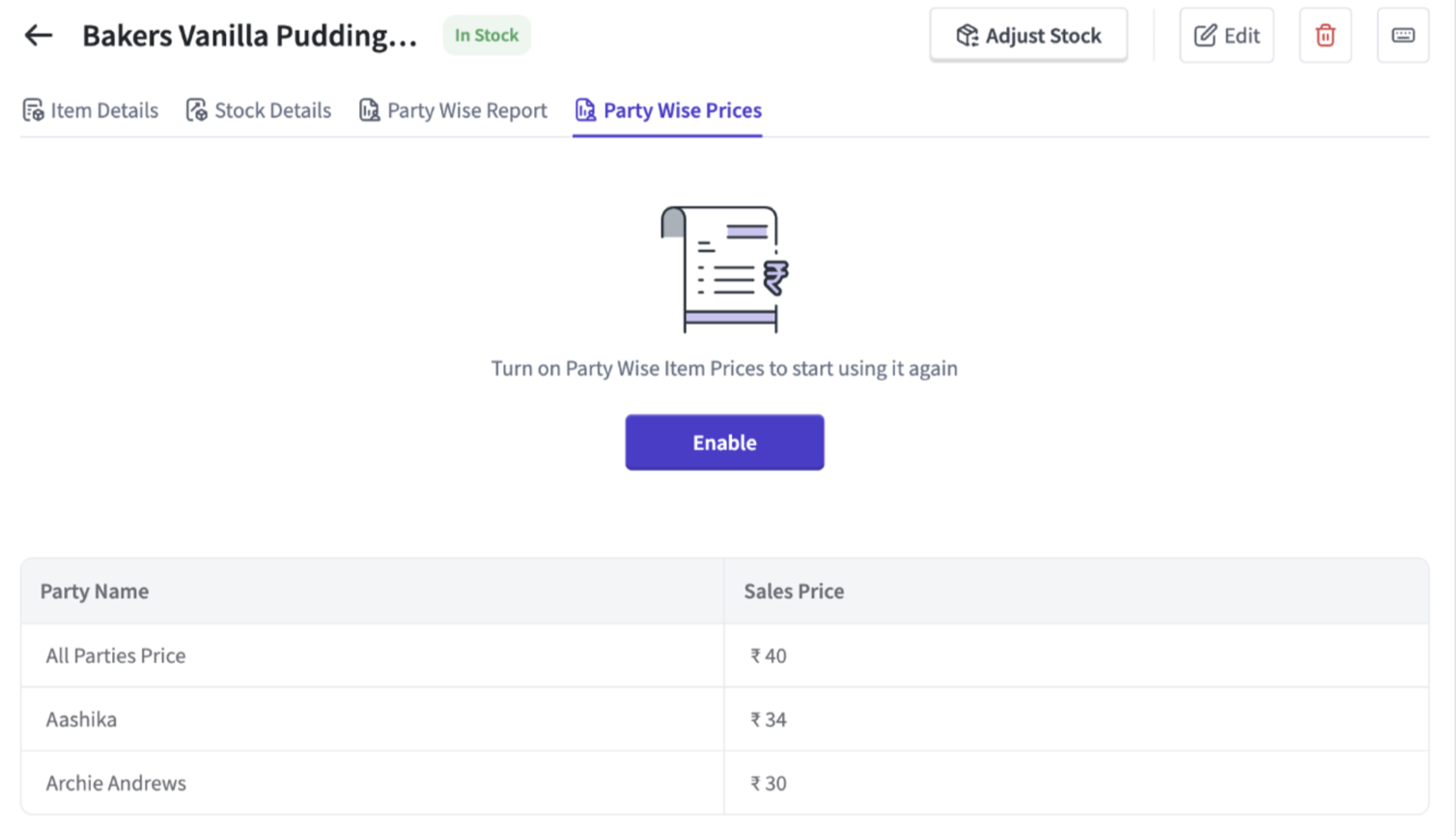
Go to Items, select an item, and define prices for specific customers in the Party-Wise Price section.
Create an Invoice:
Select the party during invoice creation, and the custom price will auto-populate.
“Party-wise” toggle in the item settings

Different prices set basis parties
Enable “Receiver’s signature” toggle in invoice setting
“Party-wise” price reflecting in the “Create Sales Invoice” screen

FAQs:
What happens if no party-specific price is set?
What happens if no party-specific price is set?
The default selling price for the item will be applied.
Can I use batching and PWIP simultaneously?
Can I use batching and PWIP simultaneously?
No, these features are mutually exclusive. You must disable one to enable the other.
Was this helpful?
Still need help? Share an idea